How to Perfectly Set Up, Scale & Rotate Wallpapers on macOS (Sonoma & Sequoia Guide)
Master macOS wallpaper settings. From configuring different wallpapers across Mission Control Spaces to setting up automated day/night rotations via Apple Shortcuts.
Vaibhav Sharma
Founder & Creative Technologist, TAZY

macOS Wallpaper System Settings panel demonstrating 5K resolution scaling and display configuration • Engineered for 5K Retina & Liquid Retina XDR
Whether you just unboxed a brand-new M3 or M4 MacBook Pro or you are refreshing your workspace setup, getting your wallpaper configuration right in macOS is essential for optimal clarity.
With recent macOS releases (macOS Sonoma and macOS Sequoia), Apple redesigned the Wallpaper settings interface. In this tutorial, we guide you through the exact steps to configure, scale, and automate high-resolution MacBook wallpaper setups.
1. Downloading Uncompressed Masters
The most common mistake Mac users make is right-clicking a low-resolution thumbnail preview in a web browser and selecting "Set as Desktop Background."
When you do this:
The Proper Method:
~/Pictures/Wallpapers/TAZY 5K/.2. Setting Your Wallpaper in macOS Sonoma & Sequoia
Cmd + Space, type System Settings, and press Enter).3. Setting Unique Wallpapers for Different Spaces & Monitors
If you use Mission Control Spaces (virtual desktops) to separate deep coding, communication, and personal tasks:
F3) to enter Mission Control.+ icon in the top-right corner).External Displays (Apple Studio Display / Pro Display XDR)
When an external monitor is connected to your MacBook:
4. Automating Morning & Night Rotation with Apple Shortcuts
Want your MacBook to automatically switch from a lighter architectural tone at 8:00 AM to an inky chiaroscuro dark mode edition at 7:00 PM?
You can automate this natively in macOS without installing third-party bloatware:
Your MacBook will smoothly transition into dark mode discipline every evening.
Featured 5K Wallpaper Edition
Experience the exact uncompressed 5248 × 3264 master files discussed in this guide. Calibrated for MacBook Pro, MacBook Air, Studio Display, and OLED mobile.
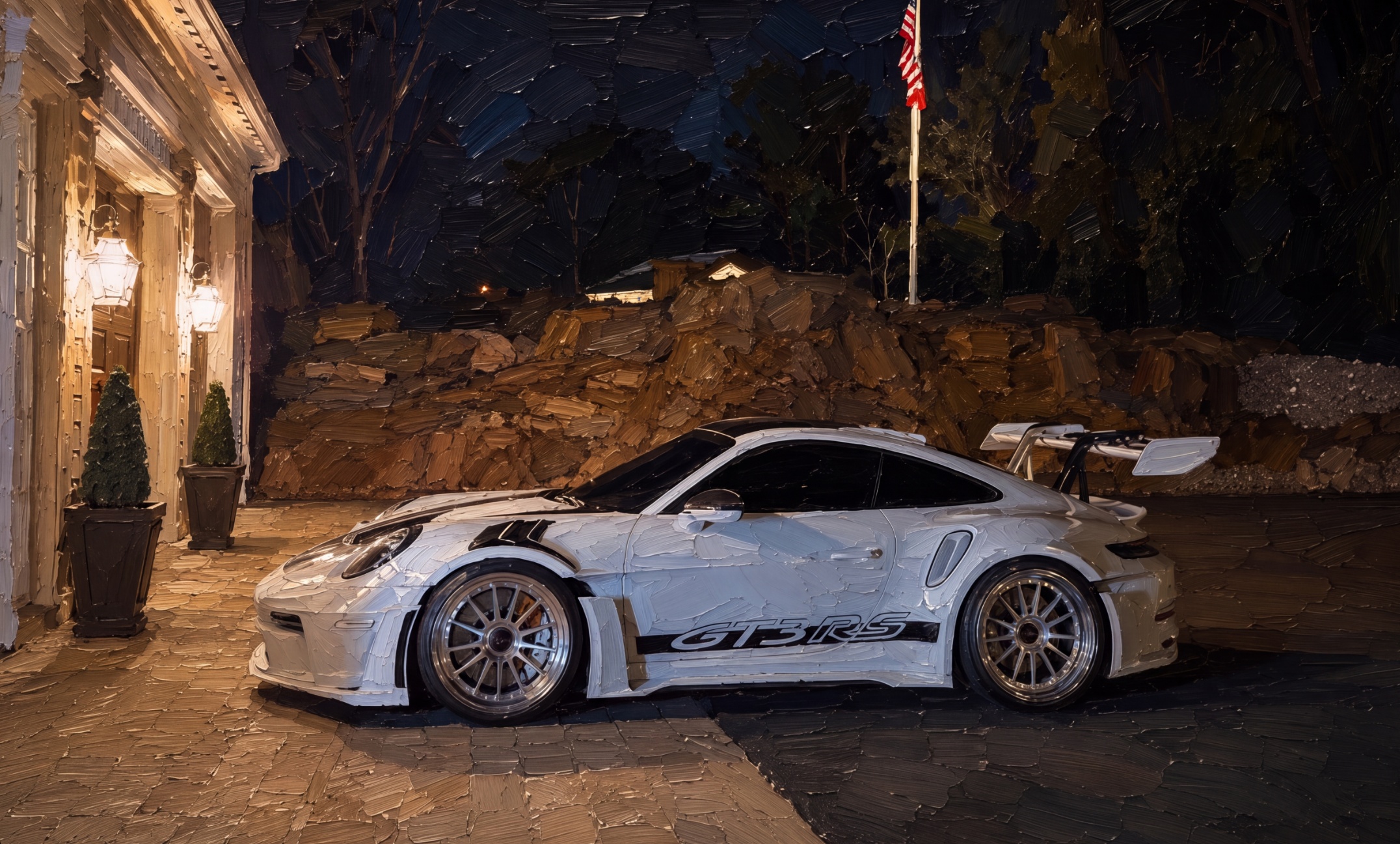
The Apex Sovereign: Aero Chiaroscuro
1 Master 5K Files • Dream Cars
MacBook Wallpaper FAQs
How do I change the wallpaper on my MacBook?
Right-click anywhere on your desktop and choose 'Change Wallpaper...' Or open System Settings > Wallpaper. Drag and drop your downloaded 5K image file directly into the preview square at the top.
Can I have different wallpapers on two monitors with a Mac?
Yes! In macOS System Settings > Wallpaper, both your MacBook display and external monitor will appear at the top. Click on each monitor independently to select different high-resolution artworks.
How do I set different wallpapers for different desktop Spaces?
Swipe up with three fingers to open Mission Control. Click into the specific Desktop Space you want to customize, then open System Settings > Wallpaper and assign the image. It will apply exclusively to that Space.
Related Field Notes
The Ultimate Guide to 5K & Retina MacBook Wallpapers: Resolutions, Color Gamuts, and Scaling
15 Best Minimalist & Aesthetic MacBook Wallpapers for Deep Focus in 2026